
Securing WordPress - increase security with .htaccess + firewall
 What is the easiest and most effective way to protect WordPress against hacker attacks? There are already many in-depth articles and different approaches to WordPress security and how to secure WordPress. This article is about creating significantly more security with little effort.
This blog post is intentionally kept short. Anything that does not help much, is too complicated, or is hardly feasible without specialist knowledge has been deliberately left out.
WordPress security - effective measures for enhanced protection
To run WordPress securely, maintaining the system is above all very important. Regular updates, especially installing security-critical updates as quickly as possible, are clearly a top priority. Someone should always keep an eye on it.
Securing WordPress - what does that actually mean?
Before we get to the advanced security measures, here is a brief summary of the basics:
- Strong passwords (admin account, FTP/SSH, database, hosting control panel).
- Enforce HTTPS/SSL for the entire site.
- Install as few plugins and themes as possible (delete unused ones).
- Only obtain themes and plugins from secure/original sources.
- Regular backups (e.g. via "UpdraftPlus Backup Plugin").
- A secure hosting environment.
- Multiple WordPress installations should definitely run isolated, each under its own system user (-> prevents mass hacks).
Simple hosting packages in which separation is not possible are unsuitable for hosting multiple sites.
- Multiple WordPress installations should definitely run isolated, each under its own system user (-> prevents mass hacks).
- Secure devices from which the website is accessed.
Beyond these basic things, the following measures have proven effective for further hardening.
1) Add to the .htaccess in the root directory
The power of the .htaccess file is unmatched when it comes to security. Individual file calls can be blocked through it, and even entire directories can be locked down.
In the root directory, the .htaccess file can be supplemented as follows so that only those PHP files can still be accessed that require direct calls.
# Blockiert alle *.php Aufrufe außer index.php und ausgewählte Core Dateien im Document Root.
# Die Unterverzeichnisse (wp-admin|wp-content|wp-includes) bleiben davon unberührt.

RewriteEngine On
RewriteCond %{REQUEST_URI} !^/(wp-admin|wp-content|wp-includes)
RewriteCond %{REQUEST_URI} !^/(index|wp-login|wp-comments-post|wp-cron|wp-trackback|xmlrpc)\.php
RewriteRule ^(.*\.php)$ - [R=403,L]
2a) Securing via .htaccess - protect wp-content
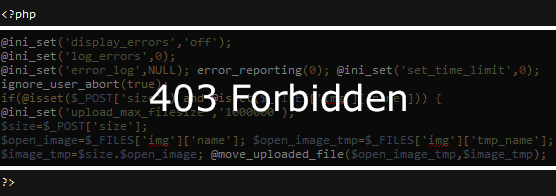 This makes a great deal of sense, especially for the very dynamic and extensive /wp-content directory. Injected PHP code and backdoors are effectively dealt with this way.
Suppose a hacker had placed backdoor code under
https://www.webseite-bereinigen.de/wp-content/plugins/akismet/wrapper.php
, then this file cannot be accessed when the wp-content directory is secured (403 - Forbidden). The same applies to all other files located deep within wp-content or otherwise injected in any way.
In the past, there have been attacks on plugin vulnerabilities that could even be fully blocked by .htaccess protection alone.
See WP File Manager and Contact Form 7 vulnerabilities.
The WordPress directory itself - secure wp-content
The .htaccess instructions can simply be copied into a newly created file or into an existing /wp-content/.htaccess file. In very rare cases, additional exceptions may be necessary. If something has not yet been covered here, please use the comment function below.
Protect the upload folder
The /wp-content/uploads folder can also be protected separately with a .htaccess file. PHP files have no place there in principle - so all .php calls should be blocked. The /wp-content/.htaccess already covers the uploads directory as well - but if that protection should ever be lost (accidentally deleted), this extra layer of protection can do no harm.
2b) Nginx configuration for wp-content protection
The .htaccess concept is supported only by the Apache web server. Unfortunately, Nginx configuration can only be adjusted with a few hosting providers.
3) Secure WordPress with a firewall (NinjaFirewall)
 The plugin "NinjaFirewall" is recommended as a highly effective and high-performance firewall. Unlike other solutions, there are no data protection concerns here - the firewall does not phone home. In addition, NinjaFirewall is one of the most performant firewalls, since it does not flood the database with log entries, as Wordfence does, for example.
New security rules are made available to all users free of charge. By default, it checks hourly whether there are updates that protect against new types of hacks.
Another useful feature is email notifications about pending security updates.
4) Secure the WordPress login - lock or hide /wp-admin & wp-login.php (optional)
Current WordPress hacks are often also linked to unwanted or stolen admin user access - logins via /wp-admin or wp-login.php followed by malicious plugin/theme uploads.
When it comes to securing the WordPress login even further, you can either use NinjaFirewall's login protection (there is a menu item for this) or hide the login - simply change the login URL.
Another solution for greater security is the still not very common two-factor authentication in the WordPress environment.
4a) Set up two-factor authentication and enforce it for admin users
Update from 18.09.2024 - Set up two-factor authentication with WebAuthn (fingerprint, camera, Win/Mac PIN) Open guide
The two plugins "Two-Factor" together with "WebAuthn Provider for Two Factor" are a great solution for implementing two-factor authentication.
Step 1: Install and activate the two plugins:
Two-Factor

The main plugin. The 2FA settings are configured under Users -> Profile.
WebAuthn Provider for Two Factor

The WenAuthn add-on plugin. Enables 2FA via fingerprint, Win/Mac PIN and camera.
Step 2: The Two-Factor plugin has no settings page. To enforce two-factor authentication (by default via email) for all admin users (this is the only way it makes sense), add the following snippet to the functions.php file of your child theme or as a force2fa.php file in the /wp-content/mu-plugins directory:
<?php

add_filter('two_factor_enabled_providers_for_user', function($providers, $user_id){
 $force_roles = [
 'administrator',
 ];
 $user = get_user_by('id', $user_id);

 if ( empty(array_intersect( $force_roles, $user->roles ) ) ) {
 return $providers;
 }

 if ( empty( $providers ) && class_exists( 'Two_Factor_Email' ) ) {
 $providers[] = 'Two_Factor_Email';
 }
 return $providers;
},10,2);

?>
Alternatively, the script can be downloaded here as a plugin: https://website-bereinigung.de/downloads/force2fa.zip
This activates/enforces the primary 2FA method of type "Email" for every admin user, provided no other method is set.
Step 3: Set up your preferred authentication method under Users -> Profile . We recommend not disabling email verification as a backup method (risk of being locked out) and setting up fast and easy WebAuthn authentication as the primary 2FA method on each device (phone, PC, ... generate one security key per device).
It is highly recommended and convenient to set up a Google Passkey via the WebAuthn option (for Win/Mac PIN on the PC / fingerprint / face unlock on the phone).
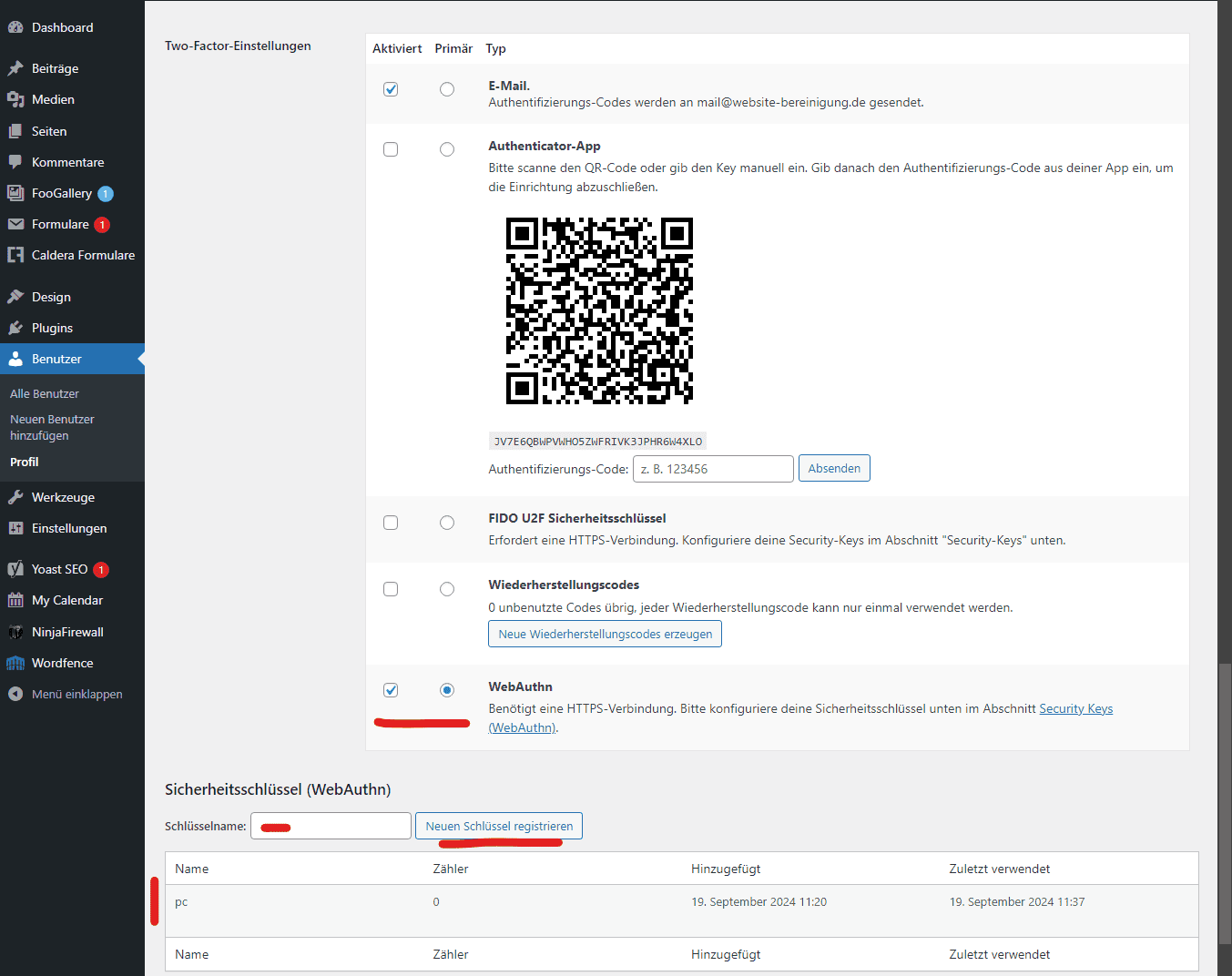

WebAuthn - passwordless login as a 2FA alternative
A modern way to log in without entering a password directly is the WebAuthn standard (a FIDO2 project of the W3C).
Instead of a password, Apple's Touch/Face ID, Windows Hello (PIN, facial recognition) and the biometric screen lock on Android can be used for authentication.
Once set up, the sign-in method can be selected as primary in the user settings, ensuring fast, convenient and secure login.
WPS Hide Login
As a second option, it can certainly make sense to hide the login completely. Of course, this is less useful if there is a frontend login (such as the customer login in the shop).
The plugin "WPS Hide Login" is suitable for renaming the login. After activation, a custom login URL can be set at the bottom of Settings -> General - for example /admin-in.
As a result, wp-login.php and /wp-admin can no longer be accessed when logged out. Accordingly, login attempts via the standard URLs will no longer happen at all.
In many hacks in the past, plugins/themes were uploaded. Many logs show entry via wp-login.php / wp-admin.
Default passwords / privilege escalation / session hijacking or cookie stealing are the causes.
Securing the login using one of the methods suggested here puts a stop to that.
Anyone who wants to deal with the topic of WordPress security in more detail can find a 7-part article series on it here: https://www.kuketz-blog.de/basisschutz-wordpress-absichern-teil1/
In summary, maximizing security is not rocket science - securing WordPress for advanced users - thanks above all to NinjaFirewall.
- Details
- Last Updated: 22 March 2022

However, Nginx is quite powerful when it comes to security. That also applies to resource usage and performance in general...
I recently installed a good bad bot blocker. Since then, peace has returned to the server.
github.com/.../...
XSS, CSP headers, etc. can also be set up relatively easily.
Thank you very much for the post!
However, it should be noted here that many cache programs store their php files there. For example WP-Rocket.
there are very few themes or theme components that load their resources via PHP scripts in /wp-content - there are generally no problems with WP Rocket - I often use it in that setup as well.
To make sure that nothing unwanted is blocked, you should test the site by checking the Network tab in the browser console. There are already some exceptions for common plugins - whether any further ones are needed can then be seen.
Most of the time, it is because people do not take the time to carry out important updates and maintenance work on their website.
You described some great ways to secure the website 100%. Really good! Hopefully more people will read these guides.
Thank you very much for putting the article together! :)
Best regards - Adriano
Regards
Argin
Best regards
In day-to-day use, I prefer NinjaFirewall as the best solution.
Kind regards Mia
Thanks and keep it up!
Thank you very much for this concise yet highly informative post about WordPress security! It is great that you focus on effective measures with little effort.
Your summary of the basics is very helpful, and the tips for adding entries to the .htaccess file in the root directory and specifically for the /wp-content folder are worth their weight in gold for warding off PHP backdoors. This is a protection that is often overlooked, but very effective.
I also think the recommendation of NinjaFirewall as a high-performance, privacy-friendly solution is excellent. And the ideas for securing the login - whether by renaming or using two-factor authentication with WebAuthn - are essential for putting a stop to common hacker attacks.
Overall, a very useful guide for anyone who wants to make their WordPress site more secure without getting lost in the details!
Best regards
Mario
Learned something new again, I did not know this before:
RewriteCond %{REQUEST_URI} !^/(wp-admin|wp-content|wp-includes)
Greetings from Hesse